



btop is a free, easy-to-read resource monitor for your VPS. It shows live CPU, memory, disk and network usage in one colourful screen, along with every running process and how much each one is using. It's the quickest way to find out why a server feels slow, what's using all the memory, or whether you need a bigger plan.
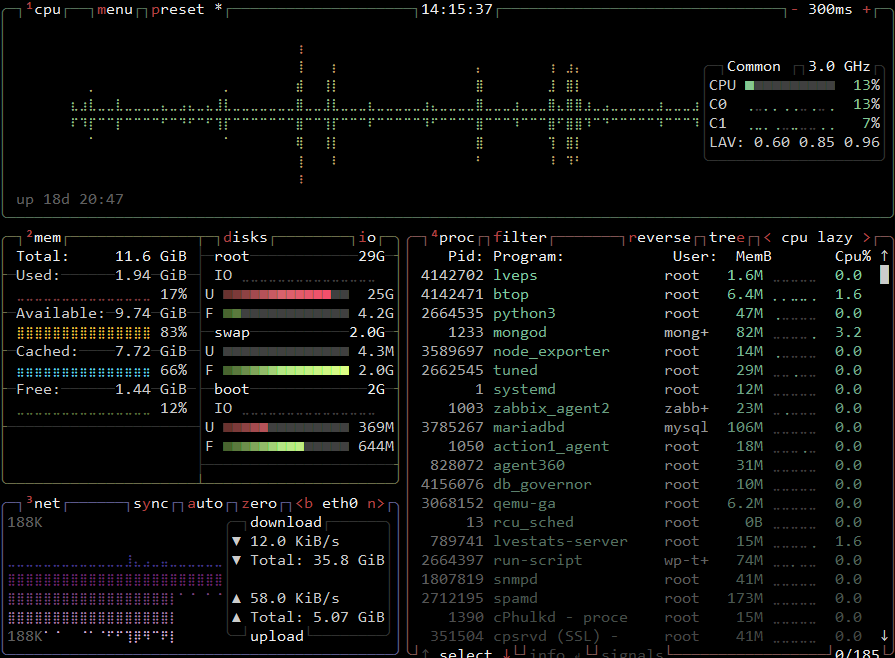
btop works on every operating system we offer: Ubuntu 22.04, 24.04 and 26.04, Debian 12 and 13, AlmaLinux 8, 9 and 10, and Rocky Linux 9 and 10.
Before you start
- SSH access as root or as a user with sudo rights. If you're logged in as root, you can leave
sudooff the commands. - btop uses very little memory, so it's fine on any VPS size.
Step 1: Install btop
Ubuntu/Debian
sudo apt update
sudo apt install -y btop
AlmaLinux/Rocky (btop comes from the EPEL repository):
sudo dnf install -y epel-release
sudo dnf install -y btop
Step 2: Run btop
btopRun it as your normal user to see everything. Use sudo btop if you want to stop (kill) processes owned by other users or by the system.
For the best display, use a terminal window that's at least 80 characters wide and 24 lines tall. If the colours or lines look odd, try a modern terminal such as Windows Terminal, macOS Terminal or iTerm2.
Reading the screen
- CPU (top): total CPU use, a graph over time, and the load on each core. Consistently high usage means the server is working hard.
- Memory and disks (left): RAM in use, cached and free, swap use, and how full each disk is. Heavy swap use means the server is short on RAM.
- Network (bottom left): live upload and download speeds.
- Processes (right): every running program, with its CPU and memory use. The busiest are at the top by default.
Useful keys
- Up / Down arrows: select a process
- Left / Right arrows: change the column the process list is sorted by, for example CPU or memory
- f: filter the process list, for example type
nginxto show only Nginx processes - Enter: show details for the selected process
- k: kill the selected process (you'll be asked to confirm)
- 1, 2, 3, 4: show or hide the CPU, memory, network and process panels
- o: options, such as colour themes and how often the screen updates
- h: help
- q: quit
You can also use the mouse to click on processes, menus and column headings.
Tips for finding problems
- Server feels slow: sort by CPU and see which process is at the top.
- Running out of memory: sort by memory. If swap is filling up, a process may be using too much, or your VPS may need more RAM.
- Disk full: btop shows how full each disk is. To find what's using the space, run
sudo du -h --max-depth=1 / 2>/dev/null | sort -h. If you use Docker,docker system dfshows how much Docker is using. - Docker containers: containers appear in the process list like any other program. Use
docker statsto see usage per container.
If btop isn't available in your repository
If your package manager can't find btop, you can install the official static release instead:
- Go to the btop releases page and copy the link for the file ending in
x86_64-linux-musl.tbz. - Download, extract and install it, replacing
LINKwith the address you copied:
cd /tmp
curl -L -o btop.tbz LINK
tar xjf btop.tbz
cd btop
sudo make install
If tar reports a bzip2 error, install it first with sudo apt install -y bzip2 or sudo dnf install -y bzip2.
Keeping it up to date
If you installed btop from your package manager, it updates with the rest of your system: sudo apt update && sudo apt upgrade on Ubuntu/Debian, or sudo dnf upgrade on AlmaLinux/Rocky.
Troubleshooting
- "No match for argument: btop" on AlmaLinux/Rocky: the EPEL repository isn't enabled. Run
sudo dnf install -y epel-releasefirst, then try again. - The display looks garbled: make your terminal window bigger, or open o (options) and switch off truecolor or change the theme.
- Numbers look different to the client area graphs: btop shows what's happening inside your VPS right now, while the client area graphs show usage over time. Both are useful for different things.
Need help?
Our Cloud VPS plans are self-managed, so you're responsible for installing, securing and maintaining the software on your server. If something on our side isn't working, such as the network, or your VPS won't boot, open a support ticket. New to your VPS? Start with our Cloud VPS Getting Started Guide.
