



How to connect Claude to your cPanel account (cPanel MCP)
Connect Claude to your Hoopla Hosting cPanel account so you can manage it in plain English. For example, you can ask Claude to list your email accounts or check your disk usage.
What is this?
cPanel includes an MCP (Model Context Protocol) connection. MCP is an open standard that lets AI assistants like Claude talk to other services securely. After you connect, Claude can run cPanel tasks for you with the same permissions as your cPanel account.
You sign in with OAuth, so you never give Claude your cPanel password. You can revoke Claude's access at any time.
Before you start
- An active Hoopla Hosting web hosting account and make sure you can login to your cPanel via our client area.
- Claude Code, either in the Claude desktop app (Code tab) or the
claudecommand-line tool. - A web browser on the same computer. You'll need it to approve the connection.
Step 1: Get your connection details from cPanel
- Log in to cPanel.
- Open Connections. To find it quickly, type "Connections" into the cPanel search bar.
- Click on Link WebPros account and link your cPanel to WebPros. Once this is enabled your Client ID is then shown.
- Find the MCP / AI assistant connection details and copy the Client ID. If a server URL is also shown, copy that too.
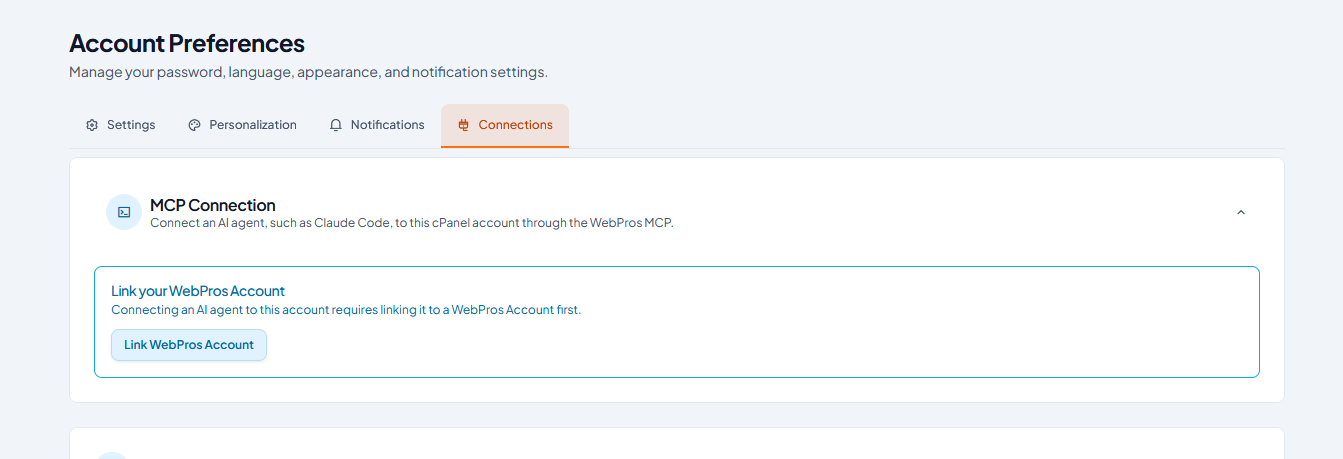
Step 2: Add the connection in Claude
- Open Claude Code.
- In the message box, type
/mcpand press Enter. The MCP connectors screen opens.
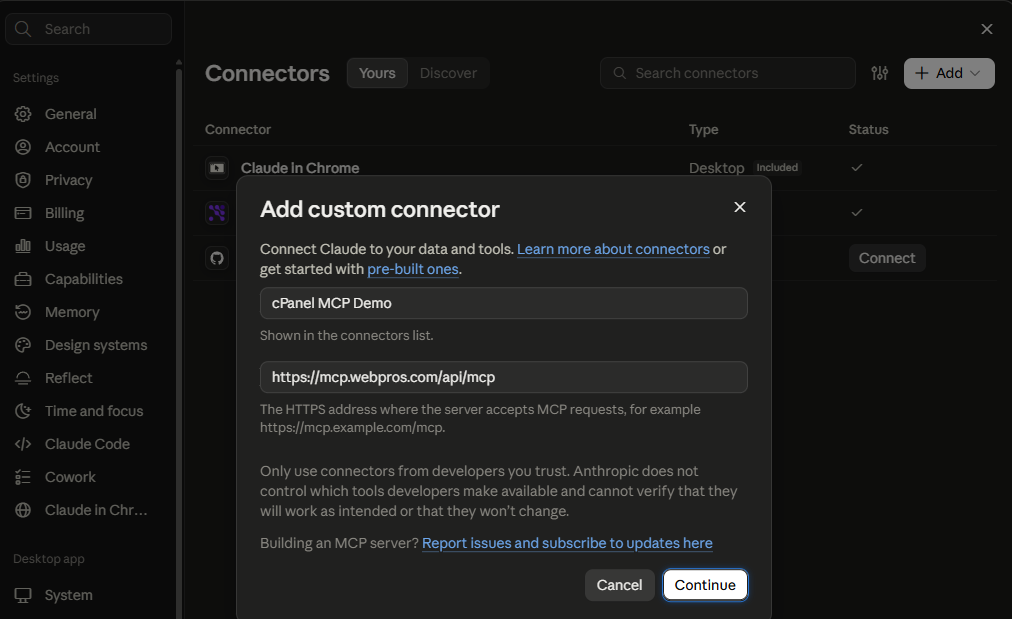
- Choose to add a connector. Input the URL.
When you're asked how to sign in, select the OAuth option. - Paste the Client ID you copied from cPanel into the OAuth Client ID field. If you're asked for a server URL, paste the URL from cPanel as well.
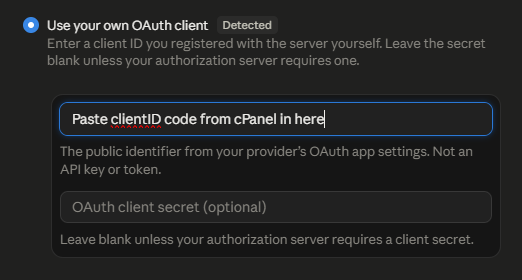
- Confirm to continue.
Step 3: Approve the connection
- Claude shows a couple of prompts, and your browser may open a cPanel authorisation page. Follow the prompts and approve access.
- When the approval is complete, Claude shows the cPanel server as connected in the
/mcplist.
That's it. Claude is now connected to your cPanel account.
Step 4: Try it out
Ask Claude something in plain English, for example:
- "List the email accounts on my cPanel."
- "How much disk space am I using?"
- "Show me the DNS records for mydomain.co.nz."
- "What PHP version is my site running?"
You can then start deploying your new site, wordpress site using Claude instantly into your cPanel web hosting account.
Before Claude runs a cPanel action, it normally asks for your approval. Read each request before you allow it, especially anything that changes or deletes data.
Troubleshooting
| Problem | What to try |
|---|---|
The server shows as failed or disconnected in /mcp |
Select the server in /mcp and choose to reconnect or re-authenticate. If that doesn't work, remove the server and add it again with a freshly copied Client ID. |
| The browser approval page didn't open | Check whether Claude shows a link you can copy into your browser manually. Also make sure a pop-up blocker isn't stopping the page. |
| Authorisation fails or shows an "invalid client" error | Copy the Client ID from cPanel > Connections again. Make sure it has no extra spaces at the start or end. |
| Claude says it can't find cPanel tools | Restart Claude Code, then check /mcp to confirm the server shows as connected. |
Disconnecting Claude
- In Claude: type
/mcp, select the cPanel server, and remove it or clear its authentication. - In cPanel: go to Connections and revoke or remove the Claude connection. This stops access straight away.
Security tips
- Claude acts with your cPanel account's permissions, so review what it asks to do before you approve it.
- Take a backup (cPanel > Backup) before you ask Claude to make big changes.
- Revoke the connection if you no longer use it or suspect it has been misused.
Need help?
If you get stuck, our support team can help.
